Quick and Easy Guide to Enable Developer Options on Firestick
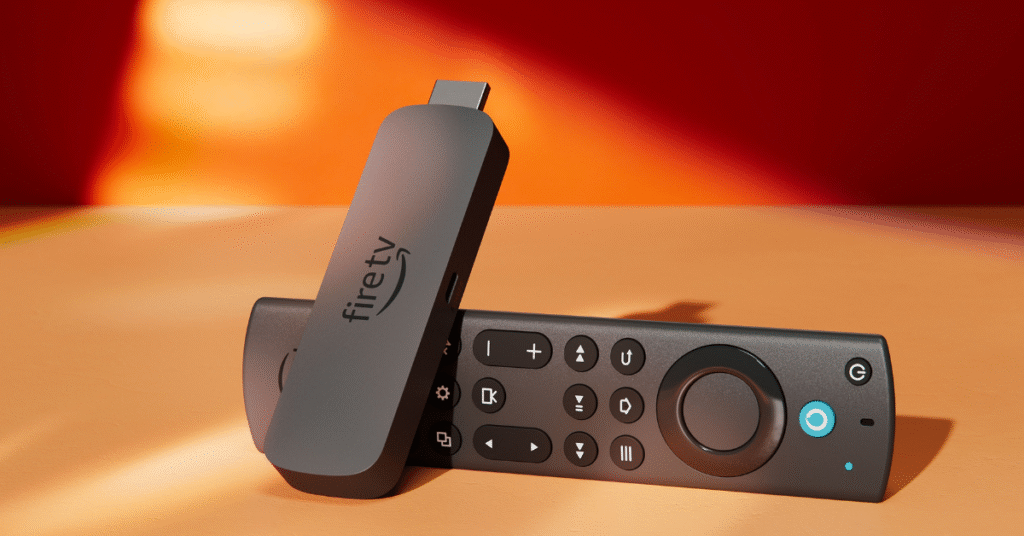
If you want to unlock more features, install third-party apps, or set up IPTV tools, learning how to Enable Developer Options on Firestick is essential. This option not only opens advanced system controls but also allows APK installations and improves compatibility with apps like Downloader, OTT Player, and Mouse Toggle. Furthermore, your Firestick becomes more flexible, more powerful, and far easier to customize once these settings are enabled.Enhance Your Streaming Now
Unlock premium IPTV with 40,000+ live channels, smooth 4K playback, and fast support using IPTV Germany Club.
Get IPTV Germany ClubWhy You Should Enable Developer Options on Firestick
Once activated, Developer Options give you deeper control over your device. They also allow smooth side-loading, enhance customization, and simplify IPTV installation. Moreover, many Firestick users consider this step essential before setting up any external apps or streaming tools.Step-by-Step Guide to Enable Developer Options on Firestick
Below is a simple, beginner-friendly walkthrough to help you Enable Developer Options on Firestick without confusion. Additionally, each step includes small tips to ensure a smooth setup.
Step 1 — Open the Settings Menu
Begin by navigating to the Settings section. This menu contains all core system options. Moreover, make sure your Firestick remote is responsive so you can continue without interruptions.
Step 2 — Select “My Fire TV”
Scroll down and select My Fire TV, where advanced tools and device settings are located. Consequently, most developer-related controls can be accessed from this section.
Step 3 — Reveal Hidden Developer Options
On newer Firestick models, Developer Options are hidden by default. Fortunately, revealing them takes only seconds:
- Open About.
- Select your Firestick device name.
- Press the center button on your remote seven times.
After doing this, you will see a message confirming that you are now a developer. As a result, the hidden menu appears instantly.
Step 4 — Enable ADB Debugging on Firestick
Next, open Developer Options and enable ADB Debugging. This improves communication with apps such as Downloader and Mouse Toggle. Furthermore, the setting helps stabilize IPTV installations and file transfers.
Step 5 — Allow Unknown App Installations
Finally, activate the Install Unknown Apps permission. This is necessary for installing APKs like IPTV players, media utilities, and streaming apps.
- Select Downloader.
- Allow installation permissions.
Once these steps are complete, your Firestick can freely install external apps and run IPTV tools without restrictions.
Why IPTV Germany Club Is the Best Match for Firestick
After you Enable Developer Options on Firestick, pairing it with IPTV Germany Club provides a powerful upgrade. Because the service offers stable servers, crisp playback, and an extensive content library, it is the ideal solution for Firestick users.
- 40,000+ Live Channels: Sports, movies, news, and more.
- 4K Streaming Quality: Smooth and stable playback.
- Affordable Pricing: Premium IPTV at a low cost.
- Multi-Device Support: Works on Firestick, Android TV, iOS, Windows, Samsung TV.
- Instant WhatsApp Support: Quick and reliable assistance.
Start Using IPTV Germany Club Today
Getting started is extremely simple, and because everything is optimized for Firestick, activation takes only a few minutes.
- Visit Our Homepage: iptvgermany.club
- Check Pricing: IPTV Germany Pricing Plans
- Read Another Guide:
How to Install Firefox on Firestick - Contact on WhatsApp: Get fast, personalized setup.
- Enjoy Streaming: Start watching thousands of channels instantly.
Start Streaming Instantly
Enable Developer Options on Firestick, install IPTV Germany Club, and enjoy a powerful streaming setup within minutes.
Firestick Troubleshooting Tips
- Developer Options not appearing? Repeat the seven-click method on the device name.
- ADB Debugging not turning on? Restart your Firestick and try again.
- Unknown Apps option missing? Ensure your Firestick is updated to the latest software version.
- Downloader not working? Clear cache → restart → try again.
- Apps not installing? Check both internet connection and available storage.
FAQ — Enable Developer Options on Firestick
IPTV Germany provides the ultimate TV service with affordable subscriptions. Experience the best TV viewing in Germany and beyond with our top-quality channels and content at the most competitive prices.
Have Questions? Contact Us Now!